This article requires the Gravity Forms Media Library perk. Buy Gravity Perks today to get this perk plus 31 other galatic Gravity Forms plugins!
GP Media Library enhances Gravity Forms to allow automatically importing files and images to the WordPress Media Library when you submit the form.
In this tutorial, we will show you how to use GP Media Library to map a submitted file or image to an Advanced Custom Fields (ACF) custom field.
Steps
- Add an Image or File custom field via ACF
- Add a GF Custom Field to your form
- Set GF Custom Field field type to “File Upload”
- Map ACF Field to GF Custom Field
- Activate GP Media Library for the GF Custom Field
1. Add an Image or File custom field via ACF
The first thing we will do is visit the ACF Field Groups page and add an Image or File custom field.

2. Add a GF Custom Field to your form
Next, we will visit our Gravity Form and add a Custom Field to our form from the Post Fields section.

3. Set GF Custom Field field type to “File Upload”
Now let’s open the Custom Field field, locate the Field Type setting, select “File Upload” from the drop down.

4. Map GF Custom Field to ACF Custom Field
Locate the Custom Field Name setting. If you’ve just created the ACF field (like we did in this tutorial), select “New” and enter the name of your ACF field.
If you’re using an existing ACF field, selected “Existing” and select the field name from the drop down that appears.

5. Activate GP Media Library for the GF Custom Field
Lastly, select the “Perks” tab at the top of the field and select the “Upload to Media Library” option.
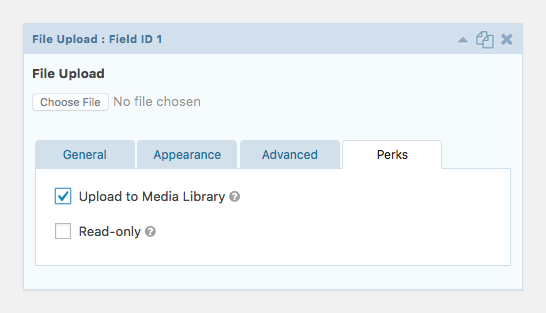
All set! Now, when the form is submitted, the file/image uploaded in this field will automatically be imported into the Media Library and mapped to the ACF custom field.
Good news! This plugin also supports mapping Gravity Forms Multi-file Upload fields to ACF Gallery fields.
We hope this helps!
Did this help you out? Let us know in the comments below!